Powerlifting App Help & FAQs
Iron Raven · Powerlifting App
Answers about the Iron Raven powerlifting app — program generation, session readiness, tracking and logging, subscriptions, and getting started. Browse the FAQs below or email us if you can't find what you're looking for.
Popular Topics
Iron Raven suits anyone who wants structured barbell training, but it is optimised for lifters who understand compound lifts and want periodised programming. The onboarding assessment captures your experience level so your first block matches where you are.
For self-serve Premium users, Iron Raven is the programming engine — it generates blocks, adapts weeks, and handles readiness and meet tools within your plan limits. Coached users receive human-written programs from their coach in the same app; self-serve cycle generation does not apply to that path. Adaptive coaching or a human coach — same product.
Sessions can be logged offline. Meet Day mode also works offline once the plan is loaded — warm-ups, the attempts board, and the plate calculator stay available. Automatic features such as program generation, session readiness, completion analysis, and next-week generation require connectivity. Logged data saves locally and syncs when you reconnect. Nothing you logged is lost.
Each microcycle (typically a week) can regenerate after you complete all sessions in that week. Session Readiness can adjust today's session without regenerating the full week. Fatigue forecasting may offer planned vs adjusted taper paths when fatigue is detected.
Meet Day is a full competition-day workflow: plan the meet format and openers, warm up with a ladder and plate calculator, log attempts with live second- and third-attempt recommendations, then debrief totals versus goal. It works offline once the plan is loaded.
At the end of a training block, you get a narrative review — what went well, what to watch, and focus areas for the next block — based on your logged training.
Yes. The custom program designer lets you set days per week, block length, phases, deloads, intensity and set schemes, and movement coverage. Iron Raven still generates the actual training weeks from that design.
My Gym lets you tell the app which dumbbells and kettlebells your gym actually has so loading suggestions respect available equipment.
The Library toolkit includes four lifter calculators: a plate calculator (also used mid-session and on Meet Day warm-ups), a 1RM calculator with predicted rep maxes, an RPE chart prefilled from your squat/bench/deadlift maxes, and a points calculator for DOTS, IPF GL, Wilks, and Wilks 2 with optional McCulloch age adjustment.
The app saves all session data locally and shows clear status messaging while generation runs — this usually takes a minute or two. You can pull to refresh if needed. Your week is complete and all sessions are saved.
Program types include Powerlifting (full SBD), Powerbuilder, Bench Only, Deadlift Only, Meet Taper, and Equipped SBD (single-ply). The assessment includes federation selection where relevant for equipped lifting.
Native iOS and Android apps, plus an installable web app (PWA). Dark and light mode follow your system. You can use kilograms or pounds anywhere in the app.
Trial users get limited usage — typically one program generation and one session readiness check — so you experience the real product before paying. Premium unlocks ongoing generation, readiness, tapers, Meet Day tools, and advanced analytics within transparent plan rate limits. Current prices are shown in the App Store and Play Store.
No. Program generation and related coaching features are rate-limited per plan. An in-app usage dashboard shows how many generations you have and when limits reset — we do not claim unlimited access.
Click on the session from the listed sessions on your home screen

Select Start Session

An option to assess for readiness to train will appear. Choose whether to optimize the session based on this or not

A countdown timer will appear to tell you that the session will start
The chosen session will load, ready to be logged as you go
Click on the tick next to the set you have done
The circle will turn green to indicate the set is complete

Click on the ellipsis (three dots) to the right of the set
Choose Edit Reps

Adjust the reps using the plus or minus signs
Click confirm in the top right-hand corner to save the actual reps completed
Click on the ellipsis (three dots) to the right of the set.
Choose Edit Weight
Adjust the weight using the plus or minus signs or by typing in the actual weight used
Click confirm in the top right-hand corner to save the actual reps completed
Click on the ellipsis (three dots) to the right of the exercise name
Select Swap Exercise from the menu

Choose one of the alternative exercises
Choose one of the options from the How Would You Like To Swap menu
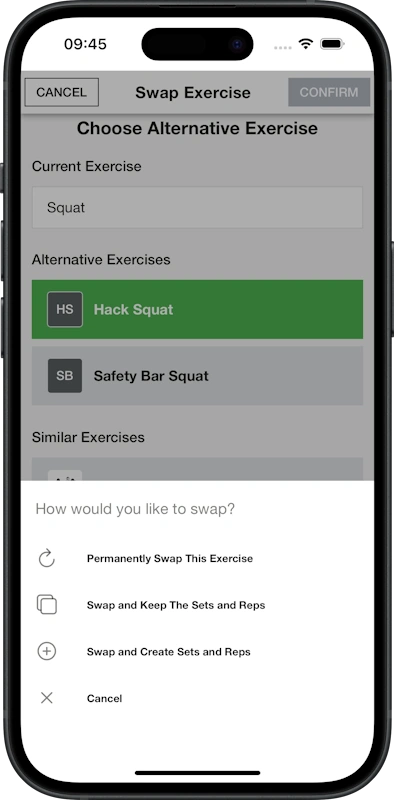
Click on the ellipsis (three dots) to the right of the exercise name
Choose Start Timer
A countdown timer will appear
You can edit the rest time using the plus and minus buttons

Start the timer
The timer will alert you that the rest period is finished
Choose Skip if you wish to start the next set before the rest time is finished
On Iron Raven Powerlifter we do things a bit differently
You get a primary (A) and secondary (B) session based on each of three lifts - squat, bench press and deadlift
Many lifters can’t fit all six sessions into a week and that is absolutely fine!
The microcycle will renew once all six sessions are complete, regardless of how long that takes

Click on the tick next to the set - this will trigger a new screen to open, ready for you to log
Select the type of equipment you are using, for example dumbbell
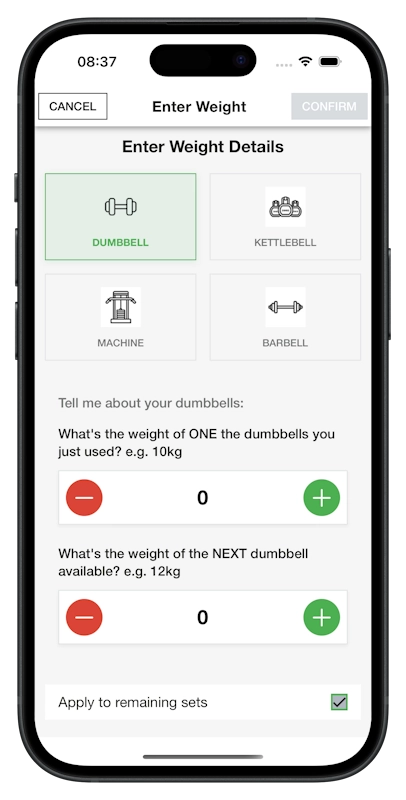
Enter the weight of ONE of the dumbbells of the pair, using the plus and minus buttons or by typing manually
In the next box, add the weight of the next dumbbell available in your gym - this will be used next time the microcycle increases your weight for this exercise
Tick or untick the box in the bottom right hand corner to indicate if the weight logged will be the weight used for the remaining sets, or not
If all the sets are logged, the session will finish and save automatically
You will see a screen showing a summary of the session
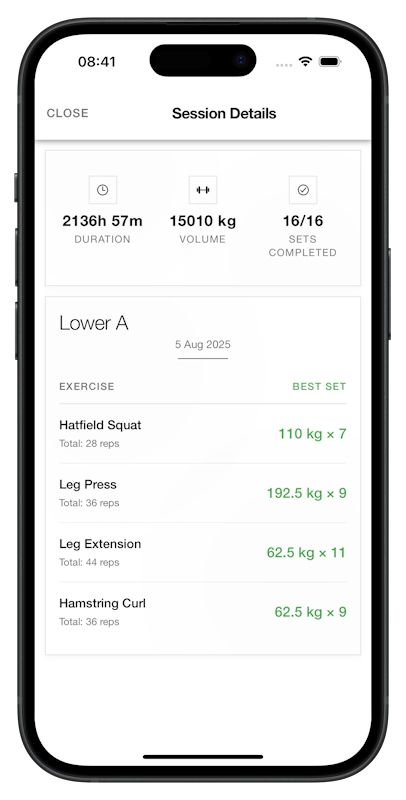
Next time you view your home screen the completed session will not show
To look back and review completed sessions select the Analysis option from the Account tab and choose from your list of completed sessions
Select Finish from the top left hand corner of the session screen

You will be prompted to note why you are finishing the session
Once you have noted your reason, confirm or cancel that you want to finish
The exercises that have not been completed will regenerate at the same reps and weight in the next microcycle
Yes, simply select the Pause button
When you are ready to resume the session, select it from your home page and select start
The session will resume where you left off, with any completed sets showing as completed

The home screen will only show sessions remaining in the current microcycle
This is to encourage lifters to complete all the programmed sessions instead of repeating favourite sessions
All our sessions are there for a reason! They are designed to help you reach your powerlifting or strength goals
An Iron Raven microcycle is a group of sessions that include all the exercises you need in your program
These sessions are displayed on your home screen
The microcycle can be completed over as many days as you require
Once complete, a new microcycle will be generated based on the sets you have logged
Each new microcycle will contain progressions - usually either number of reps and/or weight
If you fail to complete the programmed reps or weight for an exercise, they will remain the same on the next microcycle
Select the Analysis tab
A list of completed sessions will show
Select the session you want to see and a summary will display
Our programs are designed to help you reach your powerlifting or strength goals
If you log a weight that is more than the programmed weight, the next microcycle reverts down to the program
This is to ensure you don’t plateau too soon
Iron Raven programming is backed by science and real world results
If you have started a session, select the information (i) button next to the exercise name
You will be shown a video illustration and step by step written instructions
Alternatively, from the home screen, select the Account tab then Exercises

Select the exercise you wish to view and the video and written instructions will display

You can switch programs by selecting the Account tab then choose Program
Here you can select which program you want to choose
When you have highlighted your chosen program, you will be asked if you want to replace your current program
Choose continue

You will then be prompted to enter training data so that Iron Raven can design your program
Simply log back in using the same method you used at registration - eg.
Continue with email
Continue with Google
Continue with Apple
On the log in screen, enter the email address you used to register
Then select Forgot Password
A password reset email will be sent to the address you entered
Follow the steps in that email
You will be able to log back in using the new password
Click on the ellipsis (three dots) next to the exercise name
Choose Delete Exercise
The exercise will be removed from the session
The exercise will return in the next microcycle
Click on the ellipsis (three dots) next to session timer (Elapsed Time) in the top right corner of the session screen
Choose Add Exercise
Choose the exercise you want to add from the library list
The exercise will be added for this session only and will not appear on the next microcycle

Clicking on a program will open some information about this program and who it might be suitable for. You can read about the program before deciding whether to choose it or not

When you’ve selected which program you want to do you will be asked some questions so that the generated program meets your needs
You will be asked if you know your one rep max in squat, bench press and deadlift.
These will be asked in turn and you have the option to say no if you don’t know the answer

Enter the information if you know it

You will be asked questions about your training experience, body weight and age

You will be asked if you have a competition date set

The app will use all this information to generate a program tailored to you
Yes, if you have our Premium Subscription you will be prompted at the start of each session to answer questions about your readiness to train. You can skip this or choose to assess how you are feeling
Completing the questions and selecting Optimize Today’s Session triggers an advanced AI assessment of your readiness to train and will provide an optimized weight and volume selection for that session
You can choose to do this optimized session or you can proceed with the original programmed session